Git
Git is a neat tool we use to track source code, ensuring the version we’re working with is always the latest. As a developer, Git will most likely be the tool you use to send in the changes you’ve made to the source code so everyone else can incorporate them.
1. Download Git
Section titled “1. Download Git”Go to this website and install the version of Git for your operating system. If you’re on Windows, it will likely be this one:
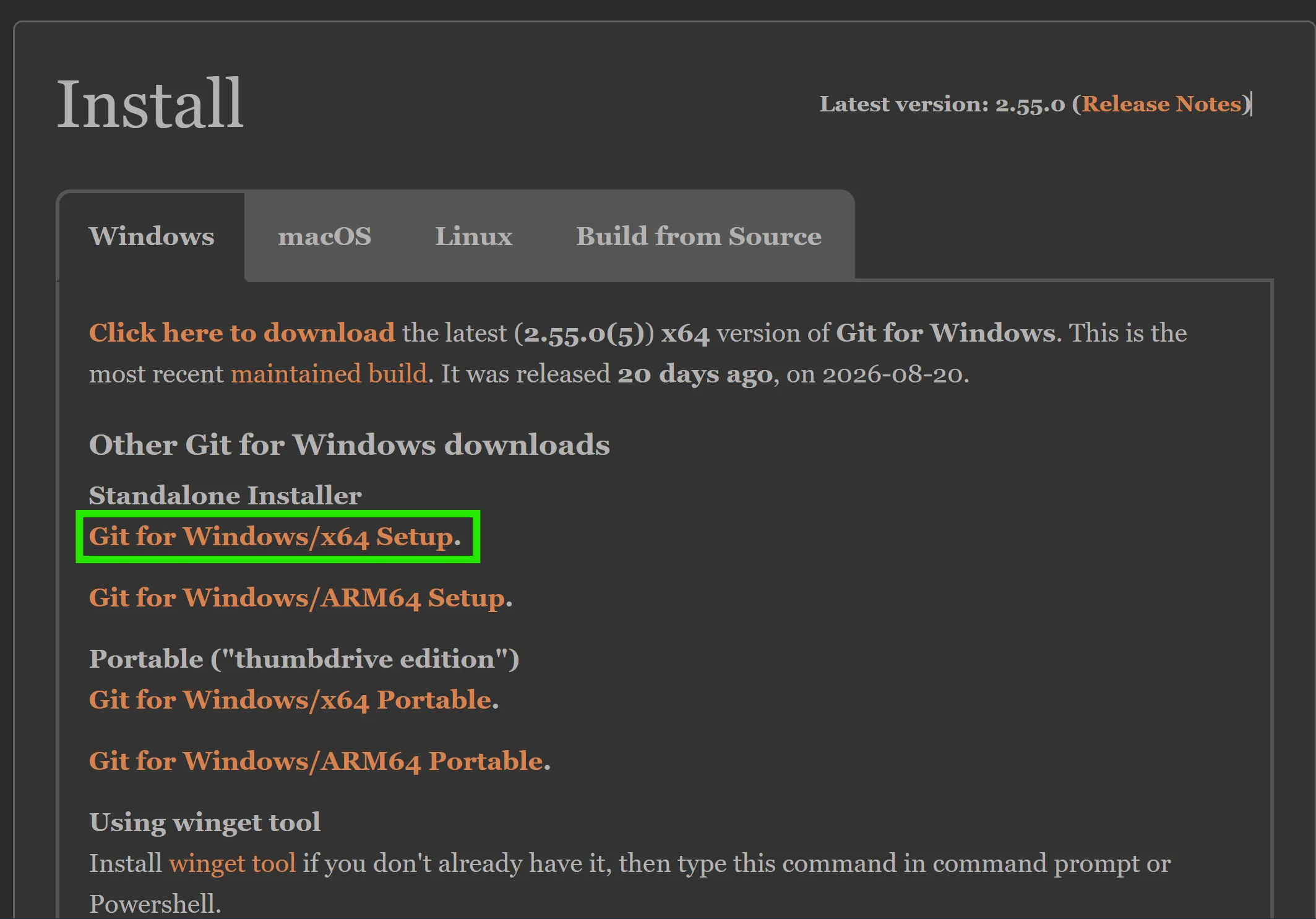
Once it has been downloaded, launch the installer and follow the prompts. Just click Next through all the configuration windows. It should already have the default configurations selected.
2. Check That It Worked
Section titled “2. Check That It Worked”Open the command line by pressing your Windows key and searching for cmd, then run the application called Command Prompt.
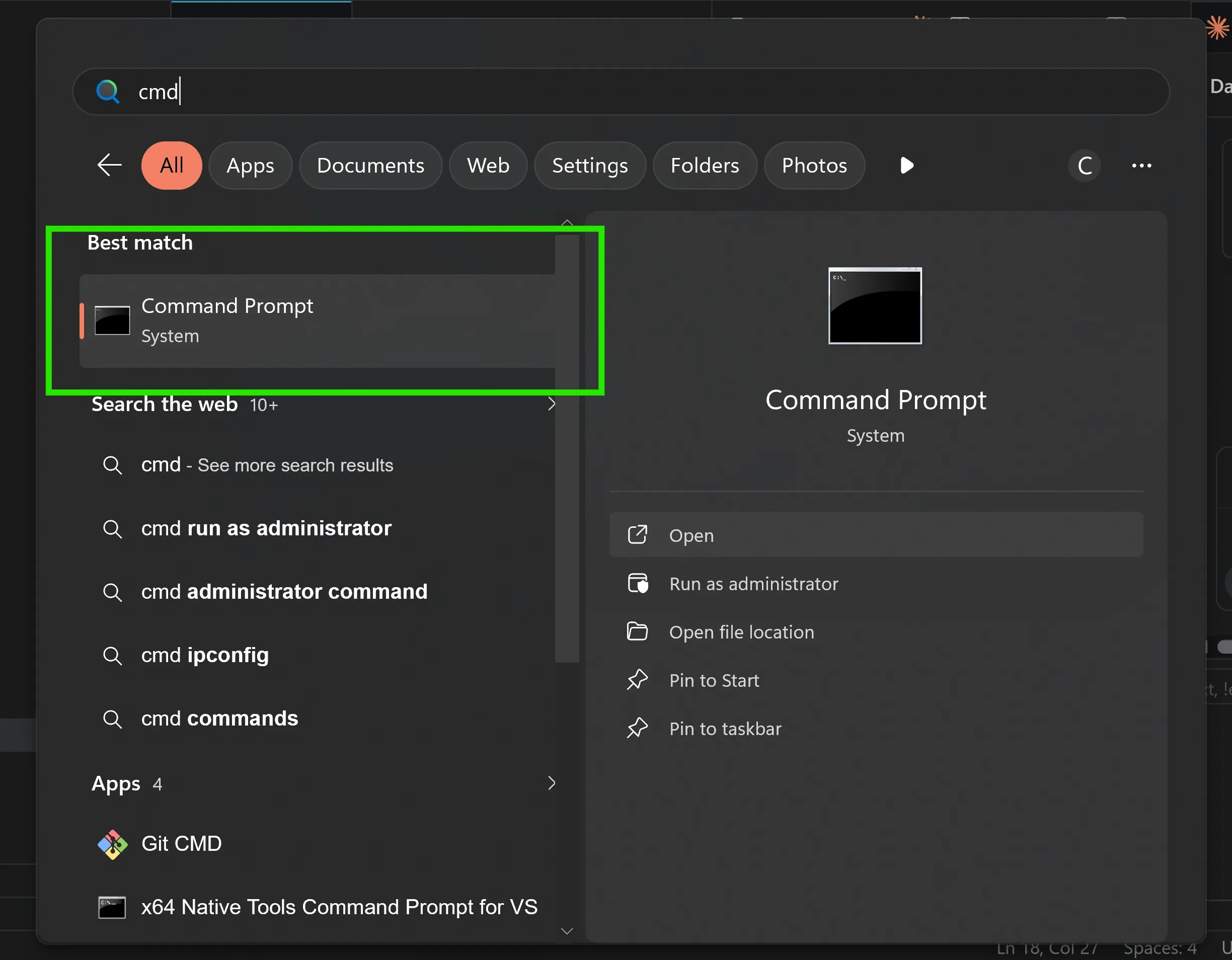
It should open an old Windows-style command line application. Type this command into the console (it is case sensitive):
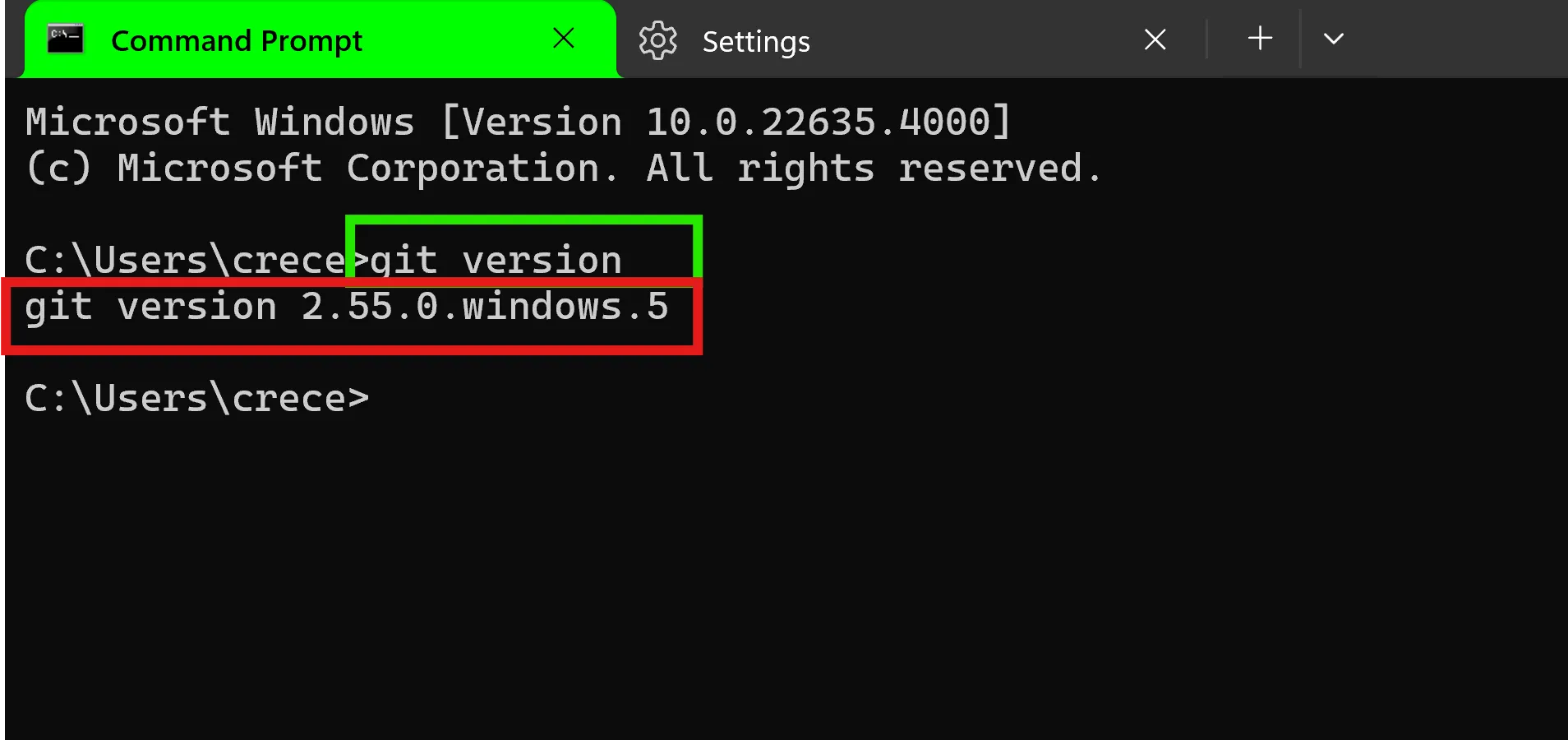
git --versionIt should print out the current version of Git you have downloaded.
3. Set Up Your User Identification
Section titled “3. Set Up Your User Identification”Git tracks code by creating hashes (a really big random number) along with the metadata of the person doing the check-in. Counterintuitively, this is tracked with a file locally, and it’s usually hidden in the same folder as your source code.
Because it requires that metadata to perform its operations, we need to set it up, or Git will not work.
First: Your Signature
Section titled “First: Your Signature”Your signature is just your name. It doesn’t have to be your real name, in fact many people treat it like a username and just put their most common online alias in. However, it is the name that will appear in Git files alongside your check-ins, and it’s a name others could potentially see if they’re looking around the source control, so please make sure your name is appropriate.
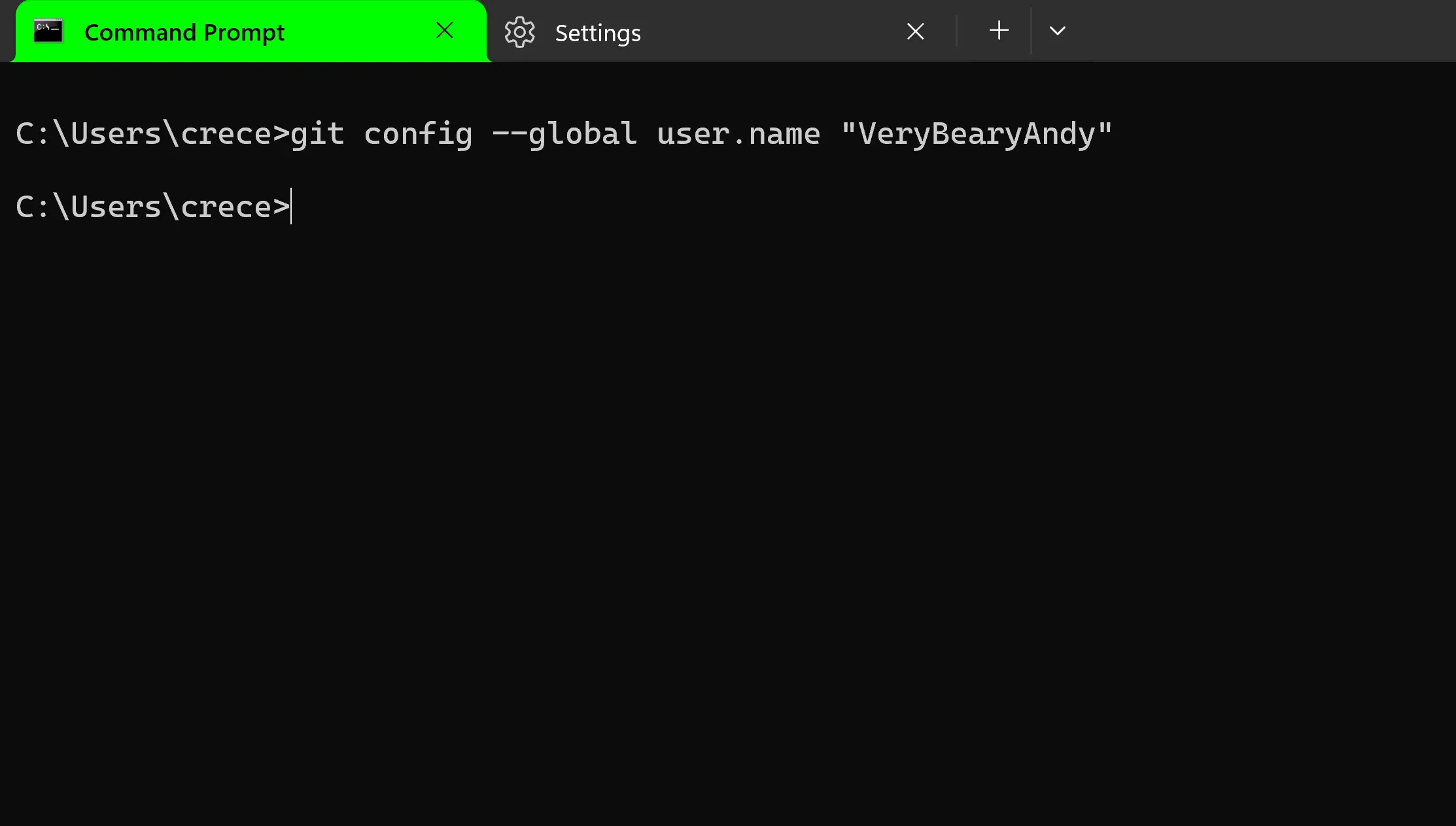
Set your Git username:
git config --global user.name "<YOUR_NAME>"Example:
git config --global user.name "Anita Man"or
git config --global user.name "Kash Money Balenciaga"Go crazy, the world is your oyster here. This is a name that realistically will only ever get read by a computer program 99% of the time.
Next: Your Email
Section titled “Next: Your Email”Git also requires you to add your email. This is for two reasons: it helps tie changes to the domain they’re coming from, so if you ever lose your system, it can validate you are the same person by your email. Also, Git is nearly completely isolated to the files you download from the repository, meaning there is nothing stopping you from taking the source code and opening a repository somewhere else with nearly all the history preserved.
Set your Git email:
git config --global user.email "<YOUR_EMAIL>"Example:
git config --global user.email "Josh-Macintire@gmail.com"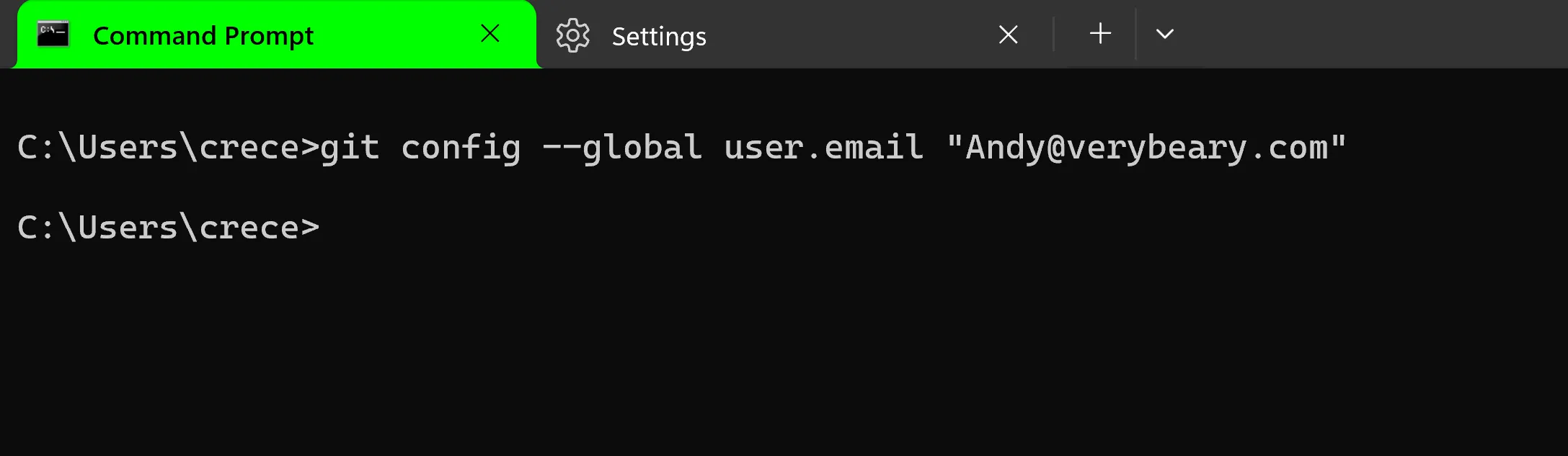
Next: Set the Default Branch to Main
Section titled “Next: Set the Default Branch to Main”This is technically optional, since most modern Git versions already default to main rather than the older convention of calling the primary branch master or origin. It’s still good hygiene to make sure your default branch is set to main.
git config --global init.defaultBranch main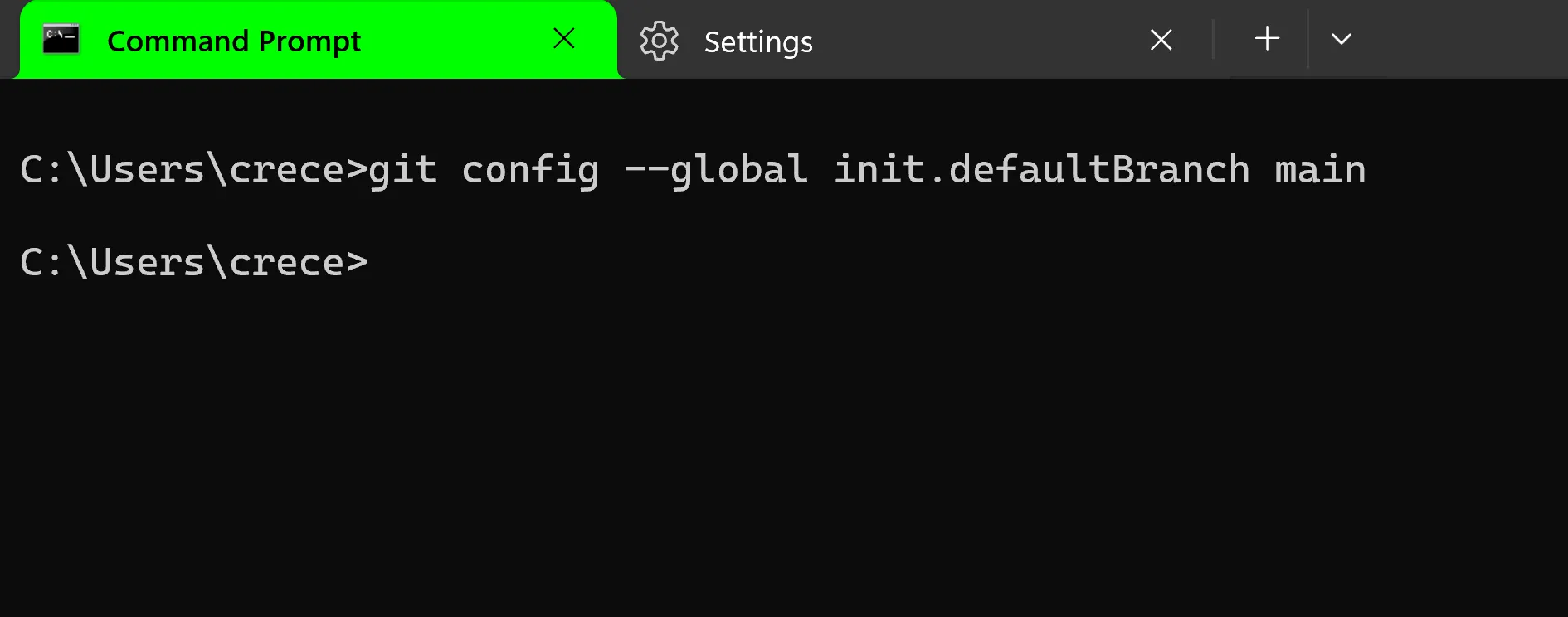
4. Set Up Your SSH Key for Codeberg (or Any SCM)
Section titled “4. Set Up Your SSH Key for Codeberg (or Any SCM)”In order to pull and push code, you need to give whatever service you’re using to host your source code a way to verify that you are who you say you are, and that you’re authorized to perform the actions you’re trying to do. We can do that with an SSH key: a personal encryption string that you use solely for that service, creating a secure personal communication tunnel.
First: Generate Your Key
Section titled “First: Generate Your Key”ssh-keygen -t ed25519 -C "YOUR_EMAIL"Example:
ssh-keygen -t ed25519 -C "Bear@Polar.com"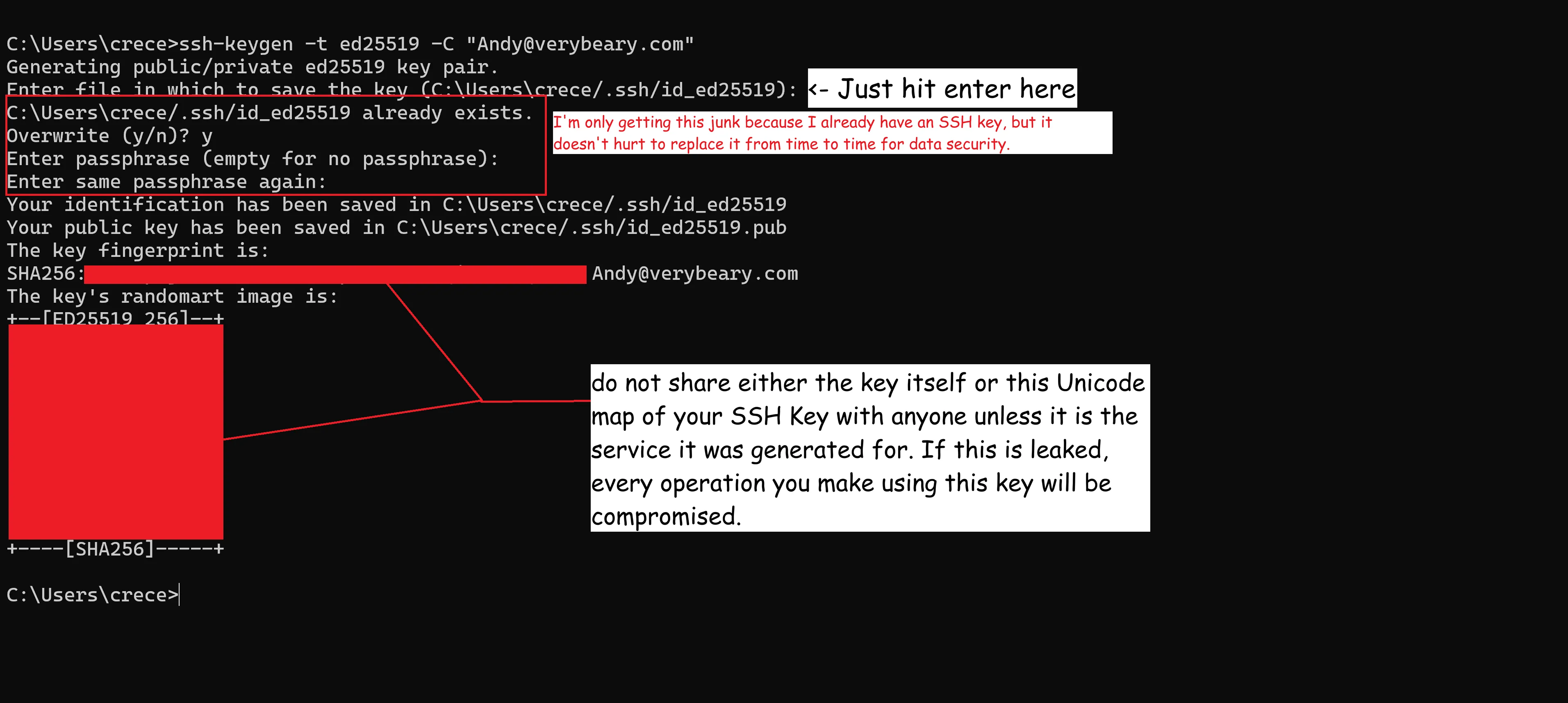
Second: Copy the Public Key
Section titled “Second: Copy the Public Key”With our SSH key pair fresh out of the oven and steaming, this is a premium time to copy our public key. In encryption, a public key is basically the key that you give to everyone so they can encrypt their data, such that only you, the person with the private key, can unlock it.
if you are on general command line, just open the pub using the type command on the file in the command line to have it dump the raw text of the SSH key into the terminal, highight the text and copy it to your clip board
type C:\Users\<YOUR_USER>\.ssh\id_ed25519.pubif you’re comfy with powershell;
Get-Content $env:USERPROFILE\.ssh\id_ed25519.pubhere is the bash command if Linux/IOS if you can run bash commands on powershell you can run this command
cat ~/.ssh/id_ed25519.pubany of these options work, if you followed the CMD example using command line it should spit something out that looks like this:

Lastly: Paste the Public Key into Your Codeberg Auth Settings
Section titled “Lastly: Paste the Public Key into Your Codeberg Auth Settings”- Go to CodeBerg and sign in
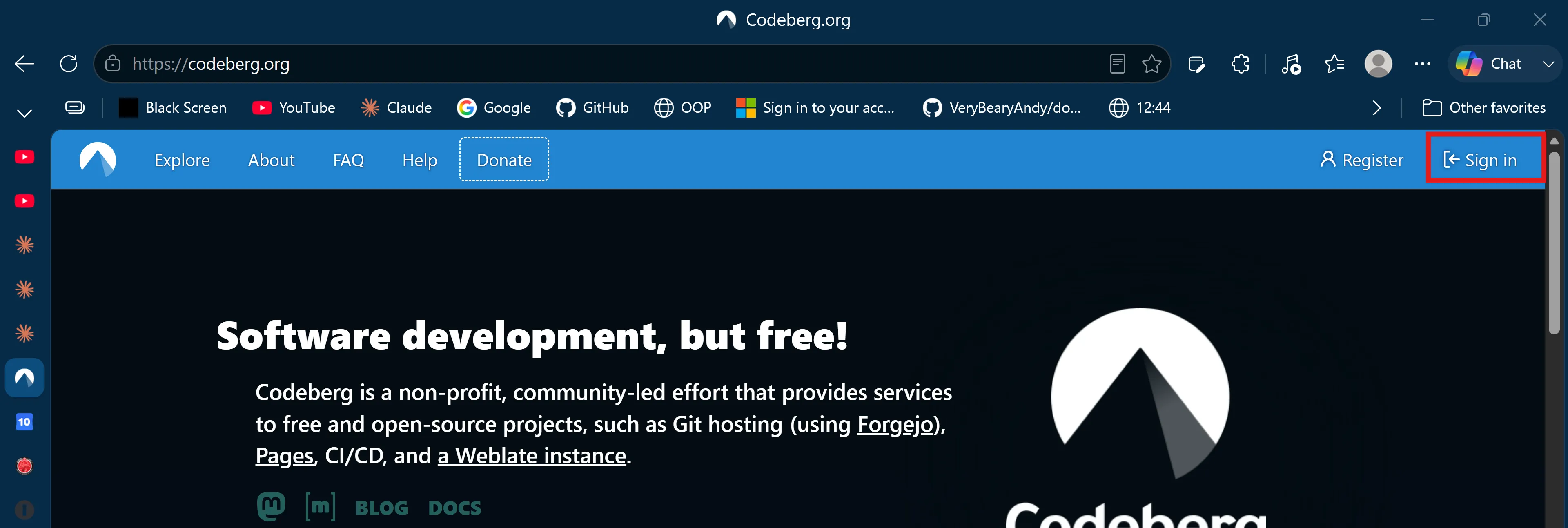
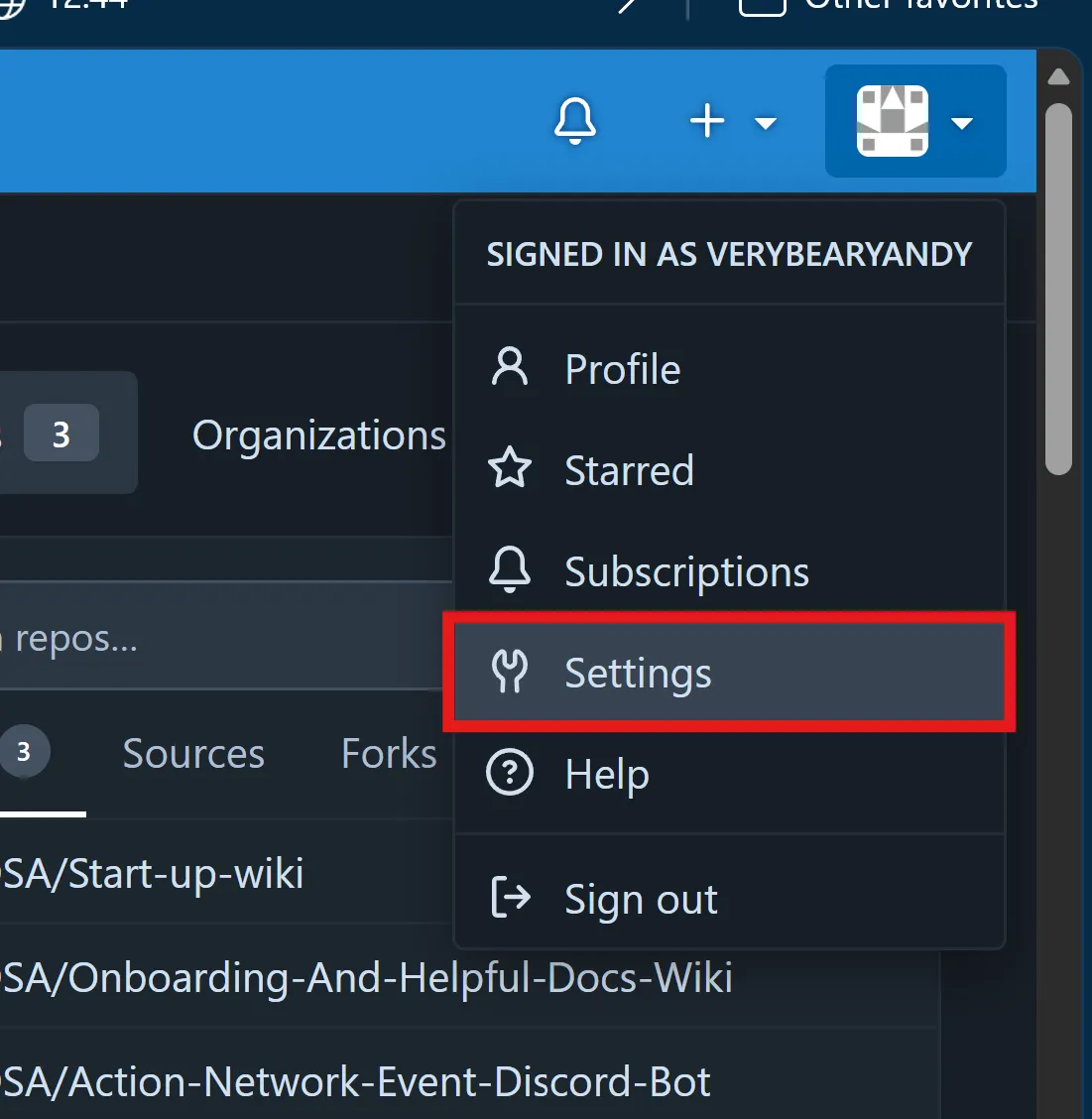
- Next, go to your user settings located under your profile in the top right of the window.
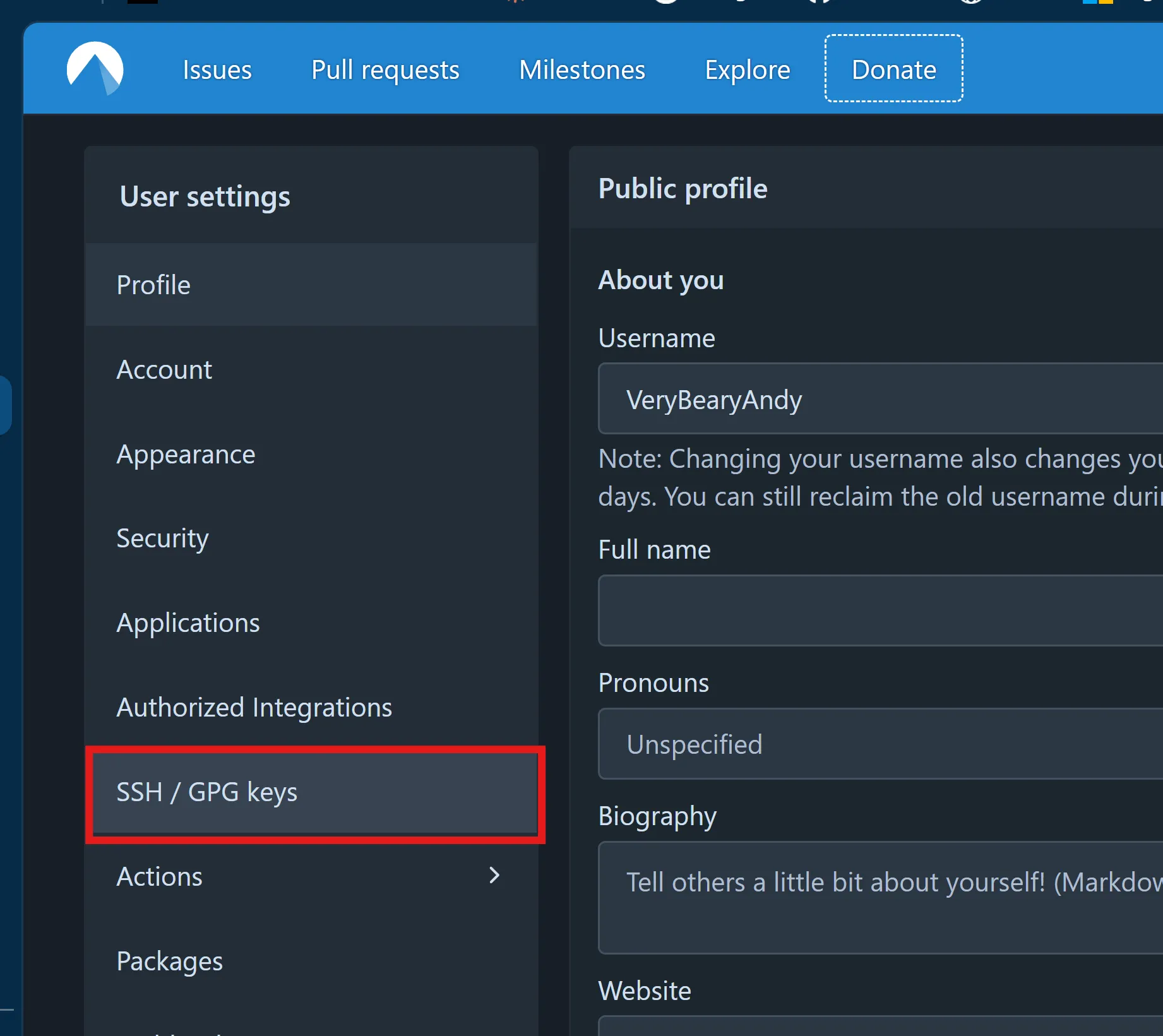
- Find the ‘SSH/GPG’ option in the nav bar and open to that window.
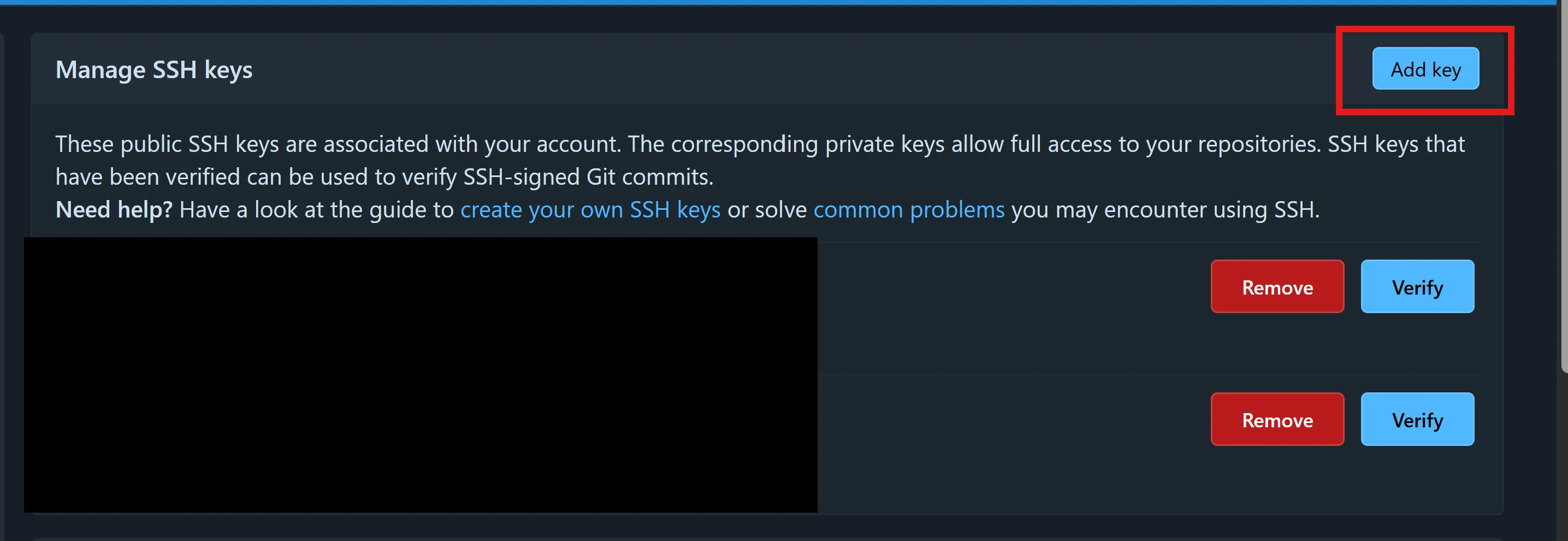
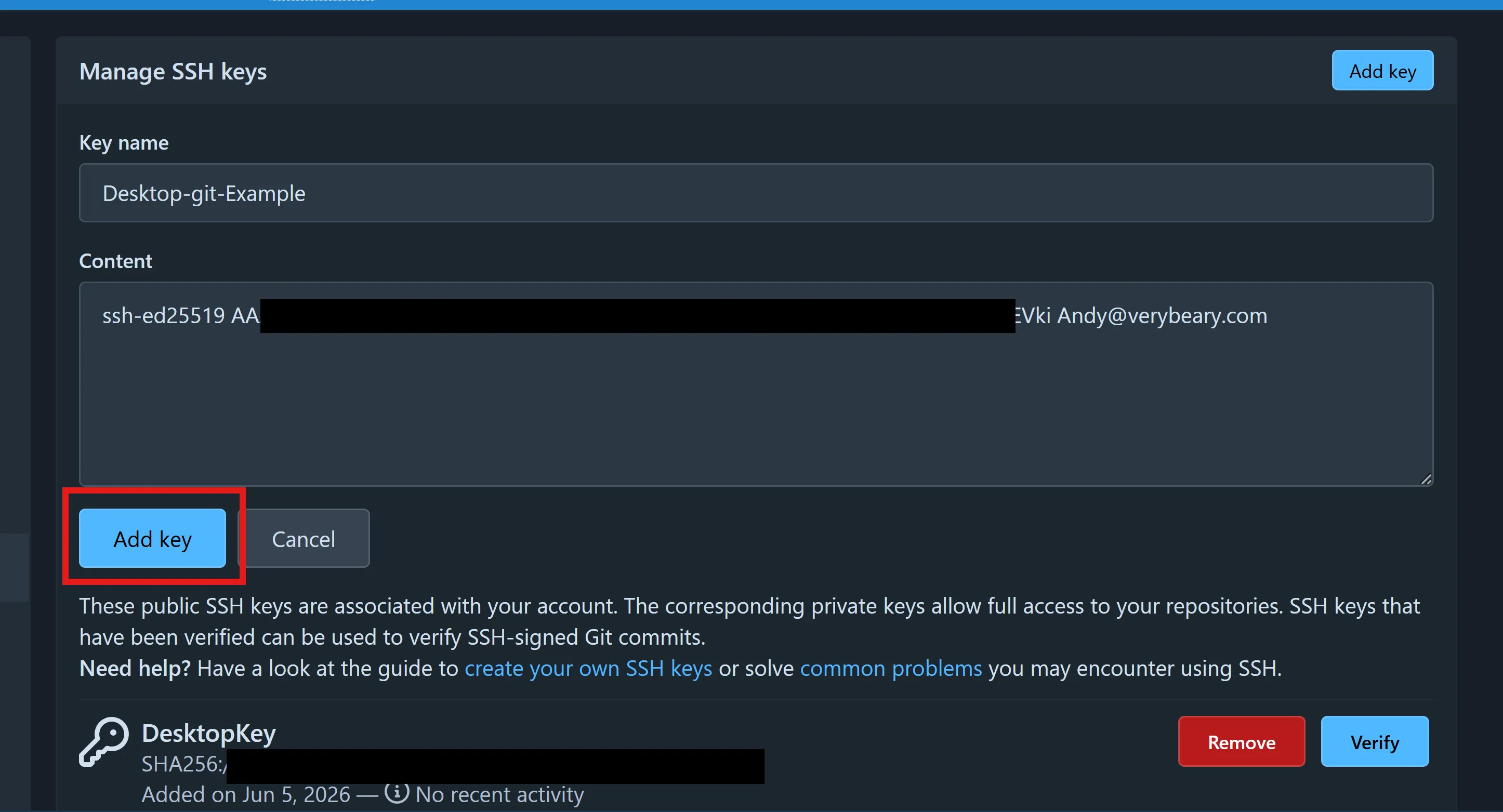
- Click the ‘Add Key’ button in the SSH menu within the ‘SSH/GPG’ options console.
- Name the key and paste the SSH key your console gave you into the key window and submit it.
- Test it out, try using Git with any of the STARS repositories on code berg.
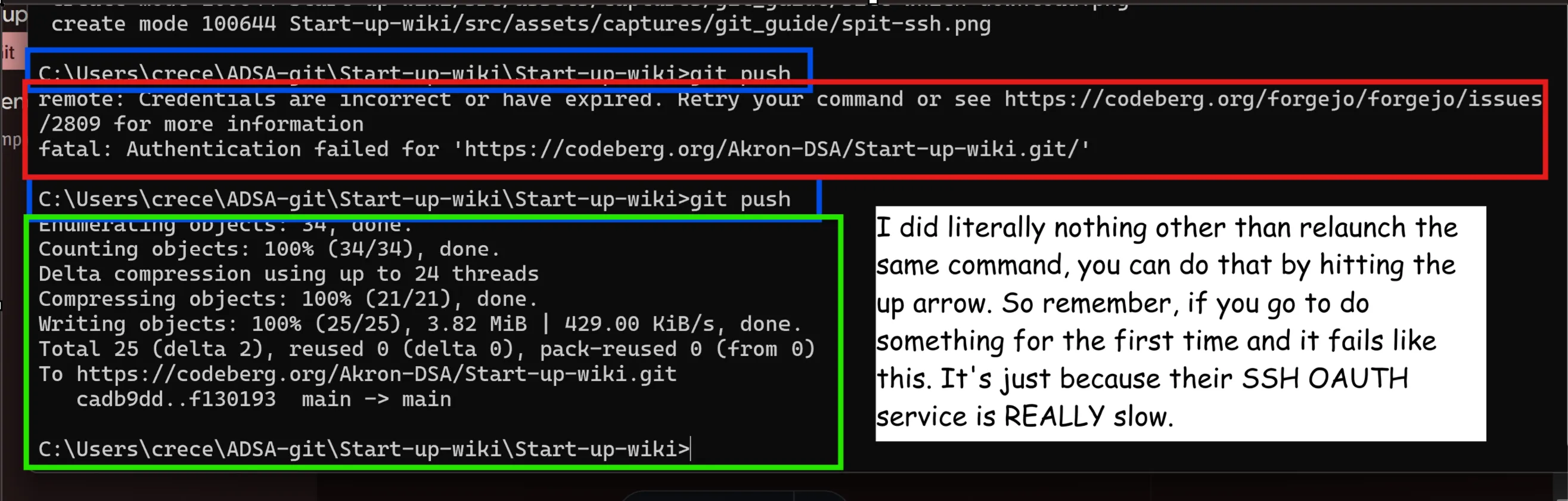
- Note, the first time you try to use it, it may bark and say that you are not authenticated, immediately try again. Often times your inital request takes too long to authenticate and returns a 403 error before you get your access token. After you have the token, you should be able to do whatever you want for approximately an hour before the token goes stale and you will need to log in again. Its just as simple as trying to do something in Git and having it tell you that you aren’t authorized.